
Schools: Getting Started Guide
Dinolingo for Schools: Step by Step Guide
Setting up your Dinolingo School Account is quick and easy. 3 Easy Steps to Get Started:
Step 1: Create A Classroom
Step 2: Add Students to Your Classroom – Add students yourself or let your teachers add them.
Step 3: Create A Teacher – Skip this step, if you're the only teacher.
Login to your Dinolingo Account
Step 1: Create a Classroom
Creating a classroom is an essential step in setting up your Dinolingo school account.
Classrooms are at the heart of the Dinolingo School platform.
Without a classroom, you cannot add students, assign homework, track learning progress, or view grades and reports.

Create Classroom: Go to Classrooms on on your dashboard and Click “Create Classroom” .
Classroom Code: Dinolingo automatically generates a unique code for each classroom. You do not need to create one.
Allocated Students: Enter the number of student enrollment slots you want to assign to this classroom.
Language: Select the language you want to teach from the list. Each classroom can have one language.
Teacher: Each classroom can have one assigned teacher. You have three options:
- Assign an existing teacher: Select a teacher from your teacher list.
- Assign yourself: Select your own Teacher-Admin account if you'll be teaching the classroom.
-
Assign later: Leave the Teacher field empty if you haven't added a teacher yet.
Tip: You can assign a teacher or change the assigned teacher at any time by editing the classroom.
Locked Mode: Choose how students access their lessons:
- Locked Mode ON: Students must complete lessons in order, starting with Lesson 1, before moving to the next lesson.
- Locked Mode OFF: Students can freely access any lesson in the course, in any order.
Save: Click “Save” to create your classroom.
Tip: You can create unlimited classrooms across different languages. However, the total number of allocated student slots across all classrooms must stay within your subscription plan's student limit.
Step 2: Add Students and Start Teaching
Now that your classroom is ready, it's time to add students!
- Go to “Classrooms” on your dashboard.
- Select the classroom where you want to add students.
-
Choose one of the following three methods:
Option 1: Bulk Add Students
Estimated time: 50 students in approximately 2 minutes.

- Click “Bulk Add Student”.
- Enter each student's nickname on a separate line.
- Create all student accounts at once.
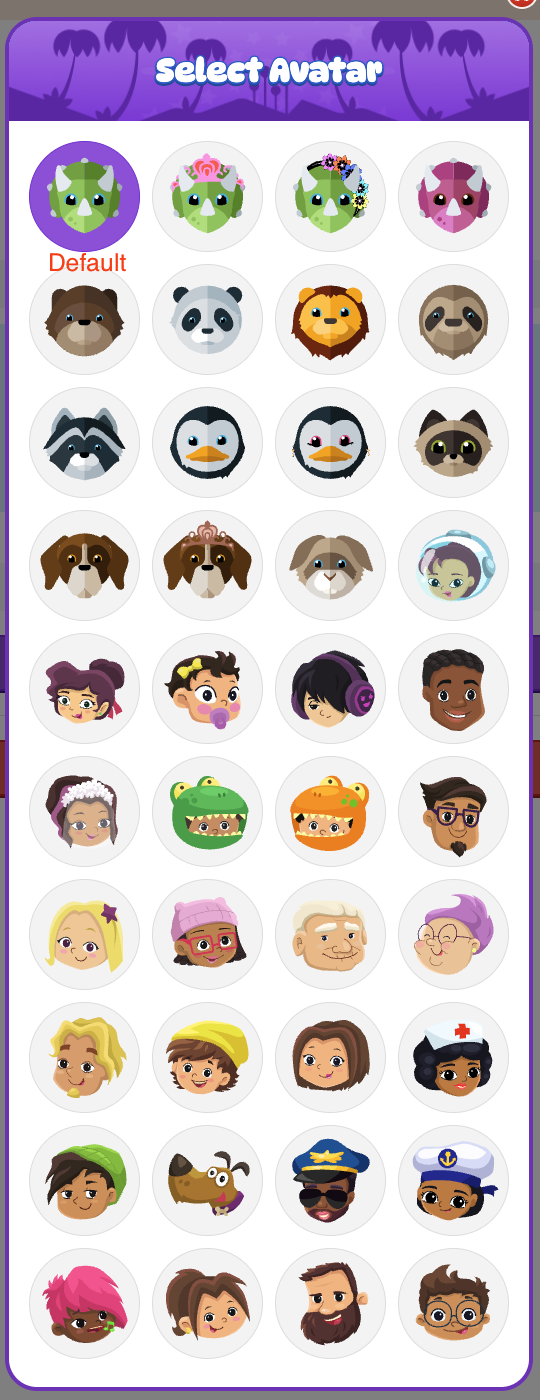
All students will automatically receive the default green dinosaur avatar.
Best for: Quickly adding multiple students without selecting individual avatars.
Option 2: Add Students Individually
Estimated time: 50 students in approximately 5 minutes.

- Click “Create Student”.
- Enter the student's nickname and choose an avatar (optional).
- Repeat these steps for each additional student.
Best for: Small classrooms or adding students with avatars.
Option 3: Import via CSV — Upload a List
Estimated time: 50 students in approximately 10 seconds.

- Click “Bulk Add Student” and select “CSV Import”.
- Click “Download Template” to get the CSV template.
- Open the template and enter your students' nicknames "only".
- Save the completed CSV file.
- Upload the file to create all student accounts at once.
All students will automatically receive the default green dinosaur avatar.
Best for: Schools with multiple classrooms or large numbers of students.
Recommended: CSV import is the fastest option for adding large groups of students.
Student Avatars
Students added through “Bulk Add Student” or “CSV Import” automatically receive Dinolingo's default green dinosaur avatar.
Teachers can change individual student avatars later, or students can choose their own avatars from their dashboards.
Student Login Codes

Regardless of which method you choose, Dinolingo automatically generates a unique Student Code for every student.
Once you've added your students:
- Go to “Classrooms” and select the classroom.
- Find the Classroom Code and individual Student Codes.
- Print or securely share the codes with your students.
-
Students use both codes to log in to Dinolingo without an email address or password.
Your students can now log in and start learning!
Step 3: Create A Teacher
- If you're the only teacher: Skip this step.

How to Add a Teacher
- If you have multiple teachers: You can create as many teachers as you need. There is no limit.
- Create Teacher: From your Dashboard -> Teachers -> “Create Teacher”.
- Teacher Nickname: Enter the teacher's name or nickname.
- Login Details: Enter the teacher's email address and create a strong password.
- Assign Classroom: Select a classroom, or skip this step and assign one later.
- Save: Click “Save” to create the account.
Security Tip: Use a strong, unique password for each teacher and avoid sharing passwords through regular email.
Note: You can add teachers before or after creating classrooms.

Last Step: Share Teacher's Login Information:
Once your teachers and classrooms are set up, email each teacher their login credentials (their email and password) so they can access their accounts and start teaching.
Congratulations! Your School Account Is Ready!
You're all set! Now you can start teaching with Dinolingo:
- Live Classroom Teaching: Use Dinolingo's videos, games, and learning activities during your lessons. You can display activities on a classroom screen and guide students through them together.
- Homework and Classwork Assignments: Assign specific activities for students to complete independently, either during class or at home. You can then track their progress and review their results in the Gradebook.
Ready to assign your first homework or classwork activity?
Follow our step-by-step guide: How to Assign Homework or Classwork
Happy teaching!